Cash Transaction Rounding and Denomination Setup
Stay is enhanced with support for penny cash transaction rounding and denomination configuration. A flexible, currency-aware rounding system has been introduced for cash and cash-equivalent payments. These enhancements enable properties to define the rounding behavior by currency and payment method, ensuring accurate payment handling and balanced folio postings.
Payment Method Enhancements
A new section, Rounding Setting, has been added to the Edit pop-up screen that appears when users modify a payment method (All Settings à Guest Accounting à Payment Method). This section includes an Active flag that supports the following functionality:
-
When enabled, rounding configuration options are displayed.
-
When disabled, no rounding is applied for the selected payment method.
This flag is disabled by default for all properties.
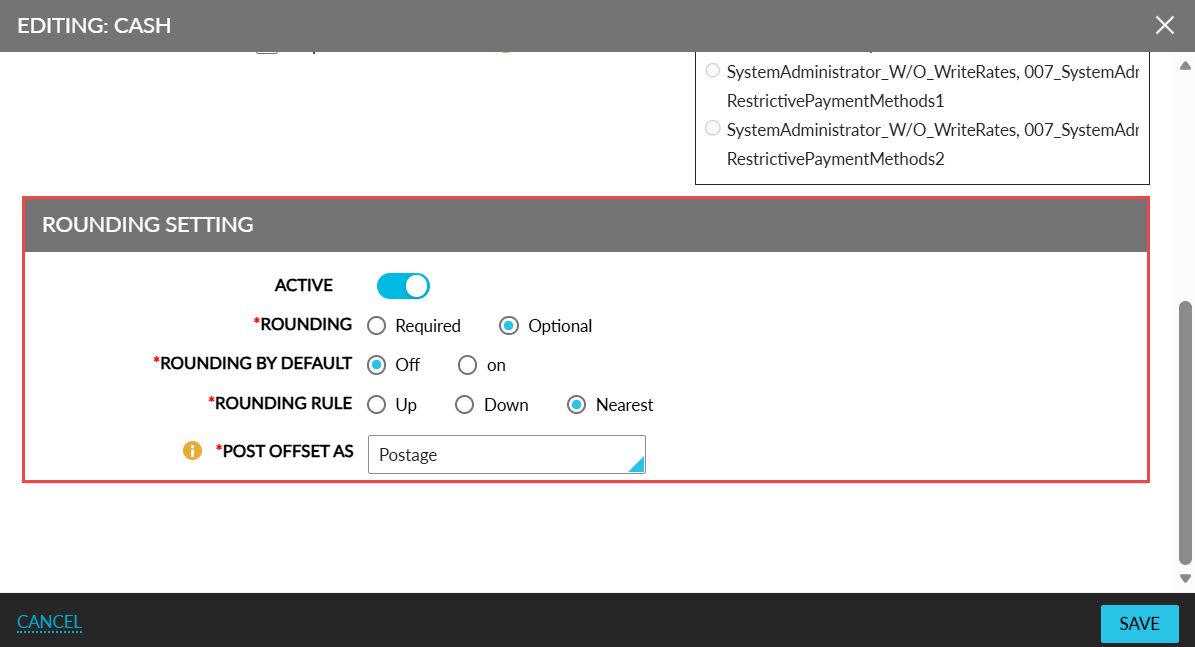
When the Active flag is enabled, the following fields are displayed:
|
Field |
Description |
|---|---|
|
Rounding |
This is a mandatory field that displays the following options:
|
|
Rounding By Default |
This is a mandatory field that displays the following options:
|
|
Rounding Rule |
This is a mandatory field that displays the following options:
|
|
Post Offset As |
This is a mandatory field that displays the list of transaction items. The selected item will be associated with the payment method and used to offset the folio balance to zero. The adjusted amount will be posted as either a charge or credit under the selected transaction item. The selected transaction item must not include price or tax values. The transaction items already associated with a payment method cannot be deactivated. An information icon added to this field displays the following message when hovered upon: Selected transaction item should not have a price or associated tax class. |
Folio Balance Offset on Round-Off
When rounding is applied and the remaining folio balance is less than the smallest configured denomination, an offset transaction is automatically posted. For example, consider the following denominations: 0.05, 0.10, 0.25, 1.00, 2.00, 5.00, 10.00, 20.00, 50.00, 100.00.
Scenario 1: Rounding Up
-
Actual payment: $100.02
-
Rounded payment: $100.05
-
Difference: +$0.03 (less than smallest denomination $0.05)
-
Action: Post a charge of $0.03 as a round-off transaction item to the folio.
Scenario 1: Rounding Down
-
Actual payment: $100.02
-
Rounded payment: $100.00
-
Difference: -$0.02 (less than smallest denomination $0.05)
-
Action: Post a credit of $0.02 as a round-off transaction item to the folio.
In both cases, since the adjusted amount is smaller than the smallest denomination, the appropriate transaction item (credit or charge) is automatically posted to the folio at the point of payment. When the smallest denomination changes (for example, to $0.10), any adjusted amounts smaller than that (like $0.07 or $0.08) will similarly be posted as credit or charge round-off items.
When the folio balance is between $0.01 and $0.04 or between -$0.01 and -$0.04 (both inclusive), and the smallest denomination is $0.05, the folio balance will be posted as a credit or charge accordingly.
Similarly, when the smallest denomination is $0.10, and the folio balance is between $0.01 and $0.09 or between -$0.01 and -$0.09 (both inclusive), the folio balance will be posted as a credit or charge accordingly.
Property Setting Enhancements
As per the existing functionality, only static denomination values can be configured for USD in the property settings (All Settings à General à Property, Buildings & Outlets à Language & Locale à Currency section). Through this enhancement, an Edit hyperlink will be displayed for the Denomination field that allows users to define supported denomination values based on the selected currency.
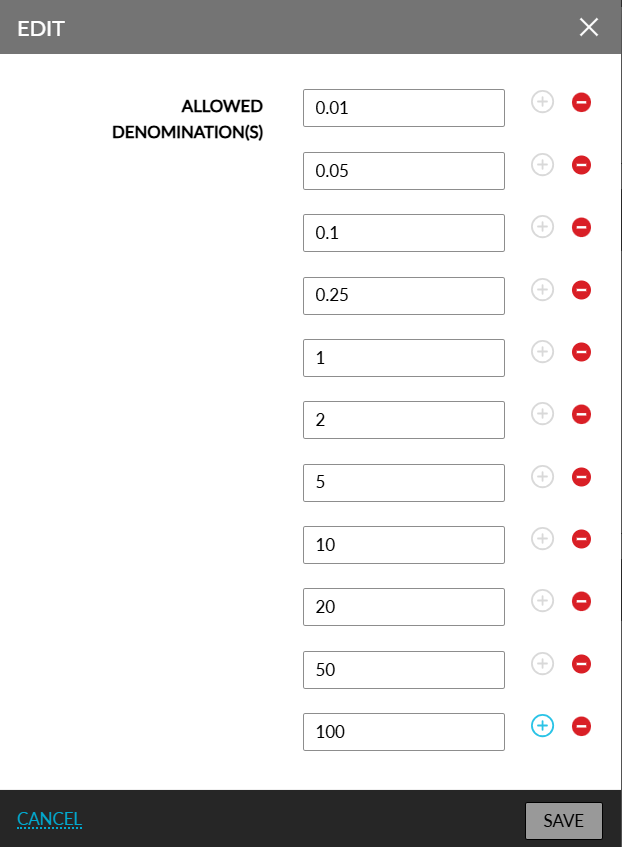
When clicked, the Edit pop-up screen appears that allows the property to define the smallest currency units that can be used for payments (For example, 0.05, 0.10, 1.00, and so on). Denomination values can be configured for each currency. Duplicate values cannot be configured. Upon clicking Save, the entered values are validated, and messages are displayed when the following validations are not successful:
-
Entered values are invalid
-
Duplicate values are entered
-
Values for mandatory fields are missing
Rounding Based on Configured Denominations
When an amount does not match any of the configured denomination values, the selected offset rule (Down, Nearest, or Up) will be applied to determine the final payable amount. All payment amounts will always be rounded based on the currently configured denomination values.
USD and Non-USD Currency Behavior
For the USD currency, the existing denominations will be retained but can be modified if required. The following are existing denominations for the USD currency type:
-
$0.01
-
$0.05
-
$0.10
-
$0.25
-
$1.00
-
$2.00
-
$5.00
-
$10.00
-
$20.00
-
$50.00
-
$100.00
Users can configure new denominations using the Edit hyperlink. When users click Save, the denomination values will be saved in the ascending order.
For non-USD currencies, users can configure decimal denomination values using the Edit hyperlink.
When the hyperlink is clicked, the following fields will be displayed in the Edit pop-up screen:
|
Field |
Description |
|---|---|
|
Allowed Denomination(s) |
Allows users to enter the denomination values. |
|
Add icon |
When clicked, a new row appears that allows users to configure additional denomination values. |
|
Delete |
When clicked, the corresponding denomination value will be deleted. |
The Delete icon will be disabled when only one denomination exists for the currency value. When a shift is active and a denomination has a non-zero count, the users will not be allowed to remove that denomination. When the denomination count is zero during an active shift, users can remove the denomination.
When a denomination has been used in the Start Shift and the user attempts to remove it from the setup, the denomination cannot be removed, and the following message will be displayed: The denomination can be removed only when the shift is not active.
Users with the existing ManagePropertyFormats permission assigned can add or modify property currency denominations.
Behavior of Rounding Flag During Payment
When Rounding Rule = Optional
-
The Rounding flag appears based on the Rounding By Default setting for all payment methods.
-
When the Rounding By Default = On, the flag is enabled by default. The user can manually disable it to pay the exact amount instead of the rounded amount.
-
When the Rounding By Default = Off, the flag is disabled by default, and the exact amount is retained. The user can manually enable it to pay the rounded amount instead of the exact amount.
When Rounding Rule = Required
-
The Rounding flag is displayed and enabled by default. This flag is displayed only for payment methods that have the Active Rounding setting enabled.
-
When enabled, the payment amount will be rounded automatically based on the selected payment method.
Users with the Stay_OverridepaymentRounding permission assigned can turn off the Rounding flag. When disabled, the exact non-rounded amount will be displayed. Both SSO and non-SSO enabled users can proceed with the payment without any additional authentication.
When users without the permission assigned attempts to disable the flag, the flag will be disabled, and the non-rounded amount will be displayed. To proceed with the payment, the user must enter valid credentials of a user who has the required permission to process the payment. SSO-enabled users without the permission assigned are also prompted to validate their credentials.
When the credentials are validated successfully, the payment will be processed. When the validation fails, the payment will not be processed, and the following message will be displayed: The user credentials provided do not have the permission to disable the rounding toggle.
Rounding Behavior for Deposits and Scheduled Deposits
Stay is enhanced to support rounding behavior for deposit collection and scheduled deposits, ensuring consistency with configured currency denominations and payment method rounding rules.
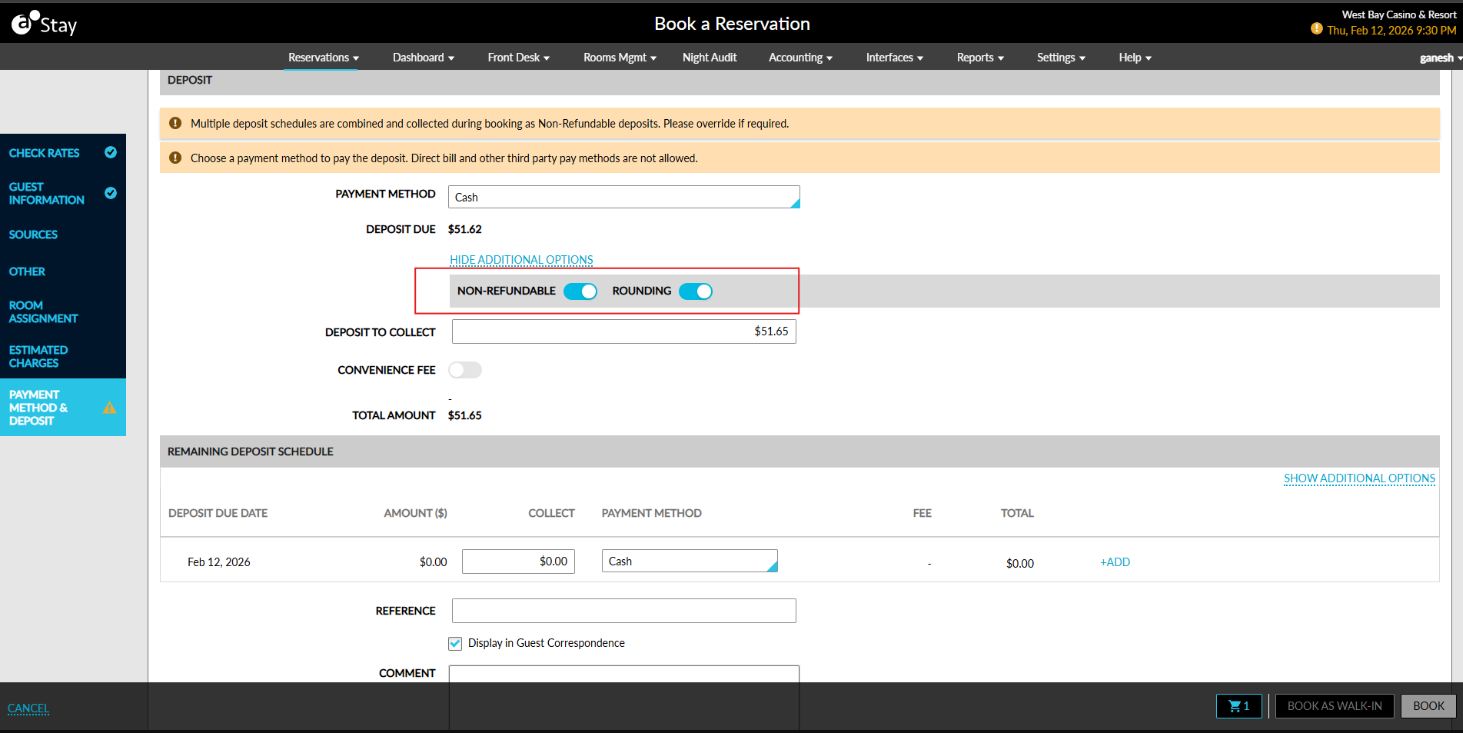
To support this enhancement, a new hyperlink, Show Additional Options, has been added to the Payment Method & Deposit section of the Book a Reservation screen. When clicked, an accordion is expanded and the following flags are displayed:
-
Non-Refundable (moved from existing location)
-
Rounding (new flag)
The hyperlink will be automatically modified as Hide Additional Options. When clicked, the accordion collapses.
Required Rounding
By default, the amount displayed in the Deposit to Collect field is automatically rounded. When a user manually enters an amount that does not match the smallest configured denomination, an appropriate message will be displayed.
Based on the permissions defined in the Rounding Setting section, authorized users can perform the following actions:
-
Disable the Rounding flag
-
Process the exact amount
Unauthorized users must follow the authorization flow to process the exact amount.
Optional Rounding
Based on the Rounding Rule = Optional setting, the amount displayed in the Deposit to Collect field follows the configured rounding behavior.
Scheduled Deposit (Collect Deposit) Enhancements
Based on the selected rounding rule, the amount in the Collect Deposit field in the Estimated Charges section of reservations is automatically rounded. When Rounding = Required, the Collect column displays the rounded amount automatically.
To support this enhancement, a new hyperlink, Show Additional Options, has been added to the Collect Deposit pop-up screen.
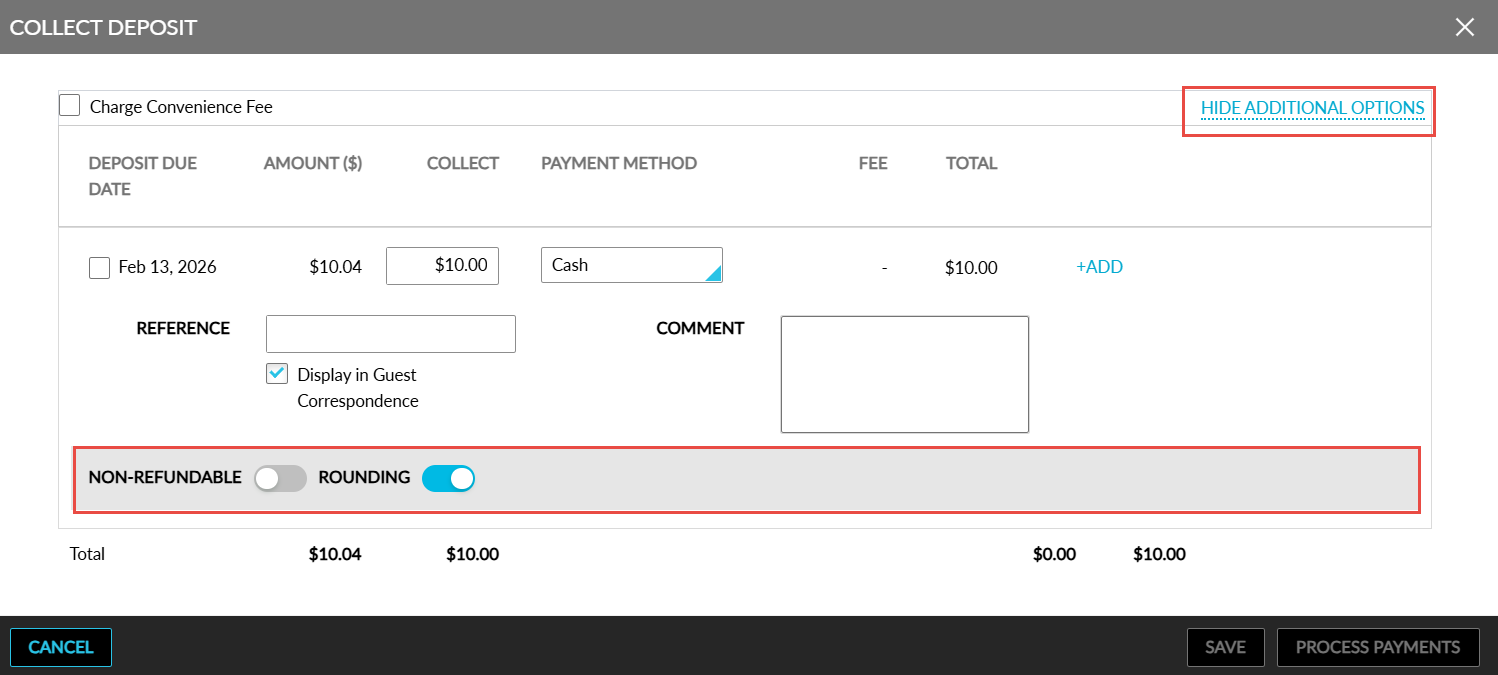
When clicked, an accordion is expanded and the following flags are displayed:
-
Non-Refundable
-
Rounding
When a manually entered amount does not match the smallest configured denomination, the following message will be displayed: Invalid amount due to rounding rule. When the selected payment method does not have rounding enabled, the Rounding flag will not be displayed. When multiple payment methods are used, where one method has rounding enabled and the other does not, the Rounding flag will be displayed and applied only to the payment method with rounding enabled.
Move Reservation Screen - Collect Deposit
The penny rounding functionality has been extended to the deposit collection functionality in the Move Reservation screen that appears when users move reservations to a different property.
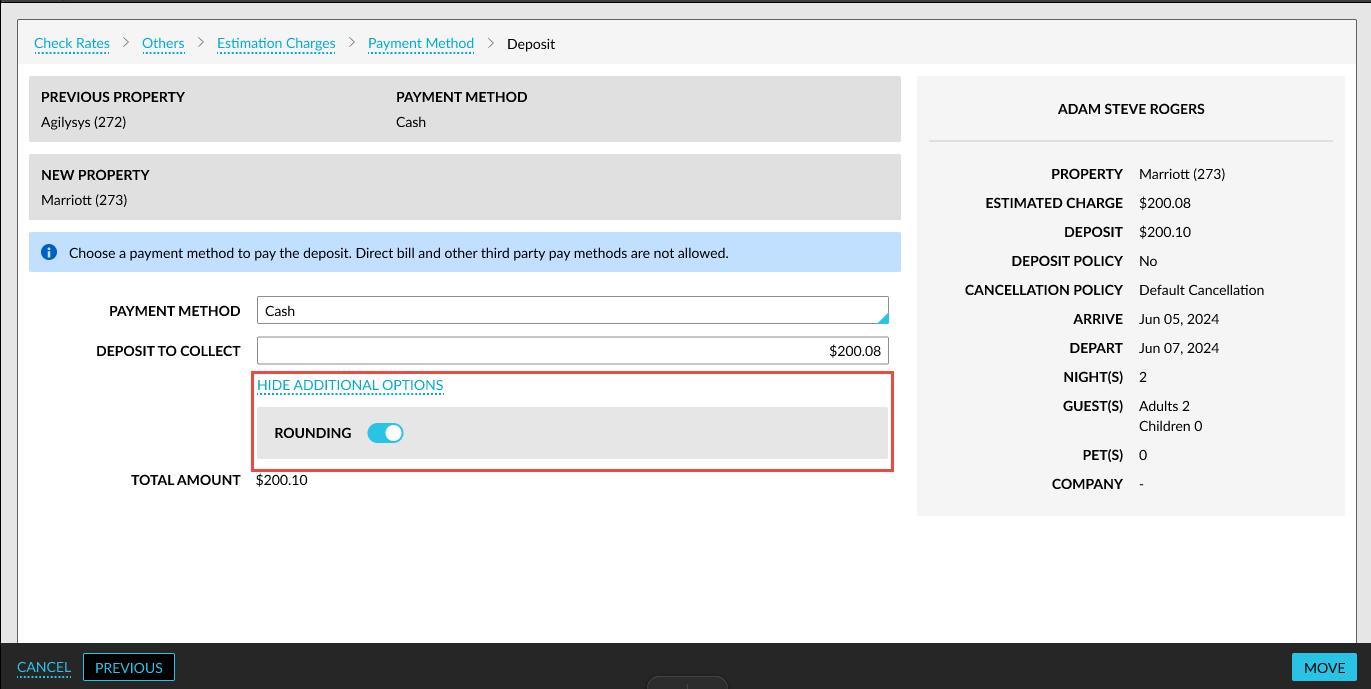
To support this enhancement, a new hyperlink, Show Additional Options, has been added below the Deposit to Collect field in the Move Reservation screen. When clicked, an accordion is expanded that displays the Rounding flag.
When the flag is enabled, the rounded amount is displayed and when the flag is disabled, the exact amount is displayed.
Start and End Shift Enhancements
When users start and end shifts, for USD currency, the existing static denomination values continue to be displayed in the following screens:
-
Start Shift
-
End Shift
For non-USD currencies, denomination values are dynamically displayed based on the following:
-
Property settings
-
Configured currency denominations
Lost and Found Enhancements
A new hyperlink, Show Additional Options, has been added below the Tracking Number field in the Release pop-up screen. This hyperlink is displayed only when the status of the item is set as Closed Sent. When clicked, an accordion is expanded that displays the Rounding flag.
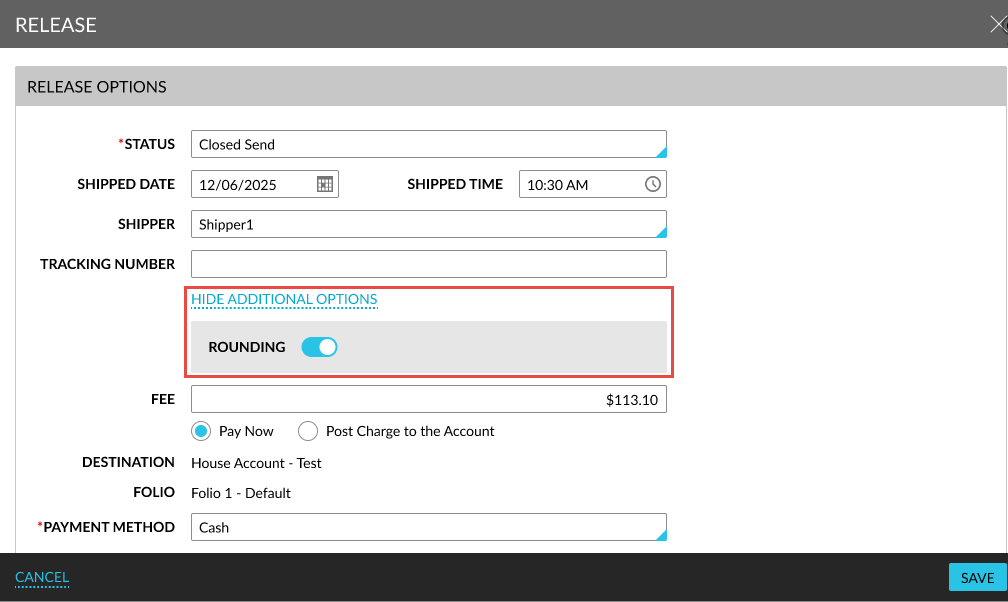
When the setting includes a fee, the amount will be populated in the Fee field. This amount reflects the rounded amount based on the configured rounding rule and defined denomination values.
For example, consider the following values:
-
Setup fee: $30.07
-
Rounding rule: Round Down
-
Smallest denomination: $0.05
The fee will be auto-populated as $30.05 when:
-
Status is set to Closed Sent
-
Shipper is selected
When the user modifies the fee manually, the value must comply with the configured denomination rules. When the entered value does not match the allowed denominations, an appropriate message will be displayed.
A/R Accounts
Stay is enhanced to support rounding behavior for payments made in A/R accounts. To support this enhancement, a new hyperlink, Show Additional Options, has been added to the Make a Payment pop-up screen that appears when users make payments to A/R accounts.
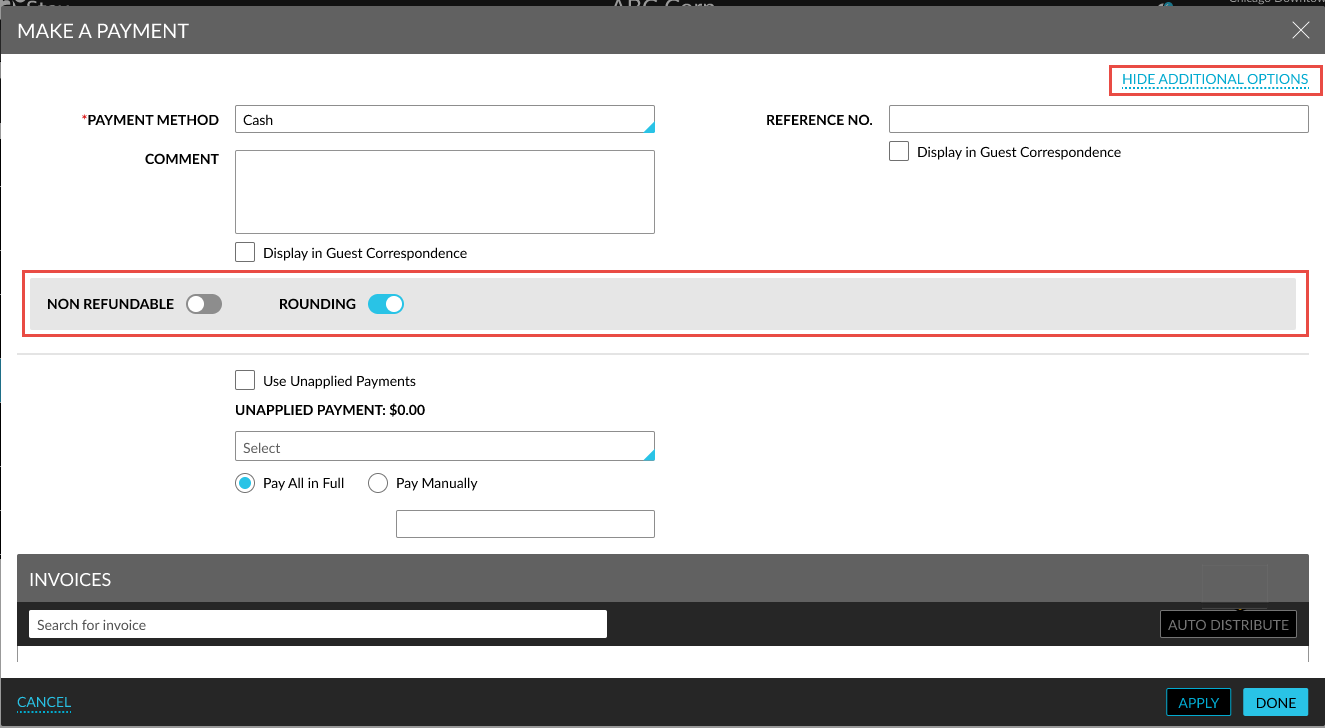
When clicked, an accordion is expanded that displays the following flags:
-
Non Refundable
-
Rounding
When the Pay All in Full option is selected, the full outstanding balance of each invoice is automatically populated in the Payment column. When the Rounding flag is enabled:
-
The total payable amount is automatically rounded
-
The rounded value is populated in the Payment field
-
The Adjusted Amount is displayed in the Adjusted column
-
Adjusted values ensure the invoice balance becomes zero
Users cannot modify the payment amount.
When the Pay Manually option is selected, users can enter a custom payment amount. On clicking Auto Distribute:
-
The entered amount will be distributed across all invoices
-
When the Rounding flag is enabled:
-
The rounding rules will be applied
-
Rounded values are populated in the Payment column
-
Any difference due to rounding is displayed in the Adjusted column
-
For example, consider the following values:
-
Distributed payments: $39.03 and $39.07
-
Rounding rule: Round Down
-
Smallest denomination: 0.05
Result of rounding:
-
Payment values: $39.00 and $39.05
-
Adjusted values:
-
Invoice 1 à $0.03
-
Invoice 2 à $0.02
-
-
The adjusted amounts are posted as credits
When users manually modify the distributed values, the amount will be validated against the configured denomination rules. When the validation fails, the following message will be displayed: Invalid amount due to rounding rule. The adjusted values continue to be displayed in the Adjusted column.
When users retrieve and print invoices, the transaction used to post the adjusted amount will be displayed.
Pantry Payments and Split Payments
A new hyperlink, Show Additional Options, has been added to the Process Split Payments pop-up screen that appears when users make split payments for pantry items.
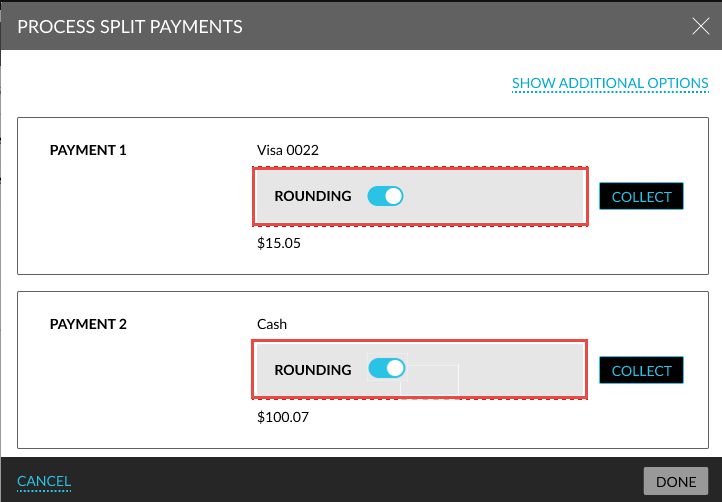
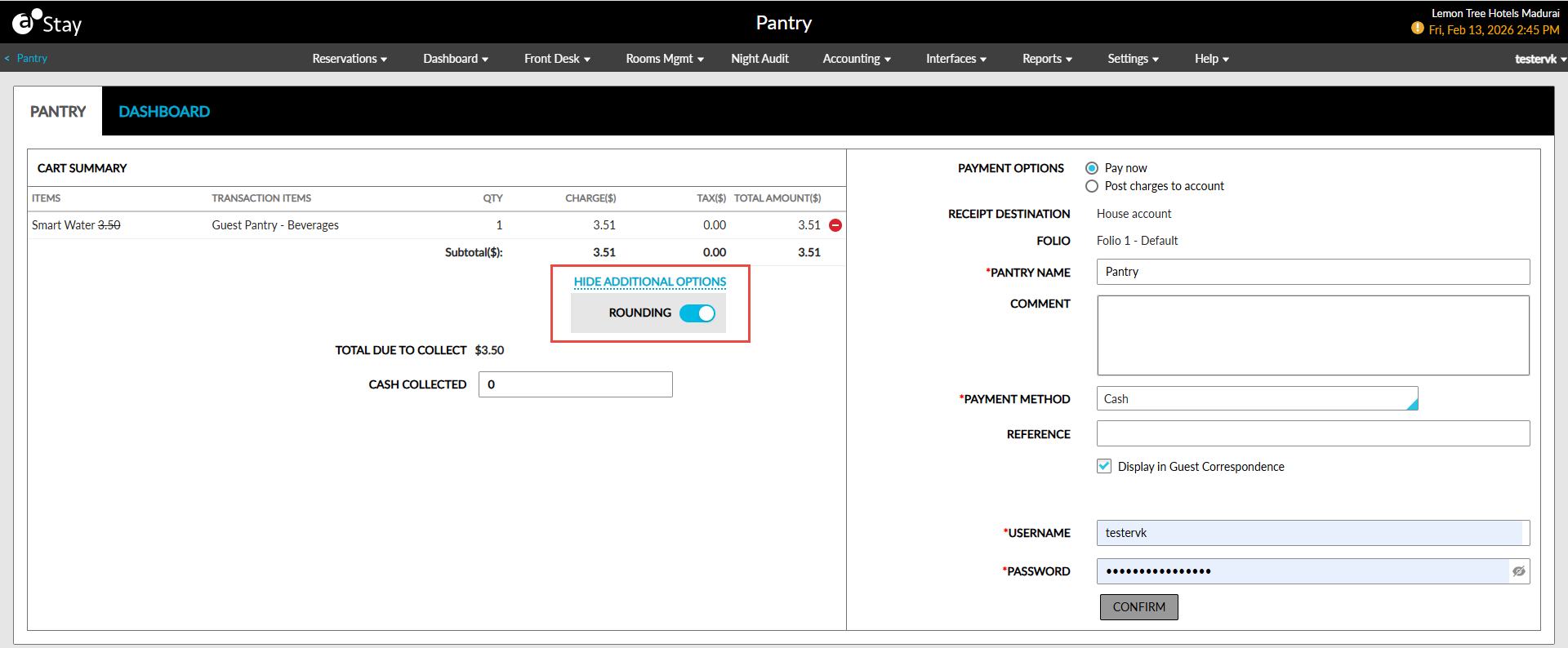
When clicked, the Rounding flag will be displayed for each payment. When enabled, the rounded amount is displayed and processed. When the flag is disabled, the exact amount will be displayed.
For split payments, each payment method will be rounded individually. Any rounding difference will not be displayed in the UI but will be posted to the folio per payment method.
The rounding differences are automatically posted as charge (round up) or credit (round down) to the associated house account folio to ensure that the folio balance is zero. The adjusted amount is also displayed when users print receipts from the folio. For multiple payments, a cumulative adjustment will be displayed.
This functionality is also applicable when users select the Pay Now option in the Pantry screen and make payments for pantry items posted to reservations (Reservation à Folio à More à Pantry).
When the Split Payments flag is disabled, a new hyperlink, Show Additional Options, will be displayed in the Cart Summary section of the Pantry screen. When clicked, the Rounding flag will be displayed. The Rounding flag must be enabled to view the rounded amount. Users can complete the payment by entering their credentials and clicking on Proceed.
Rounding Behavior for Cancel/No-Show and Check-Out Reservations
Stay is enhanced to support rounding behavior during cancellation, no-show, and check-out processes.
Cancel/No-Show Reservation Enhancements
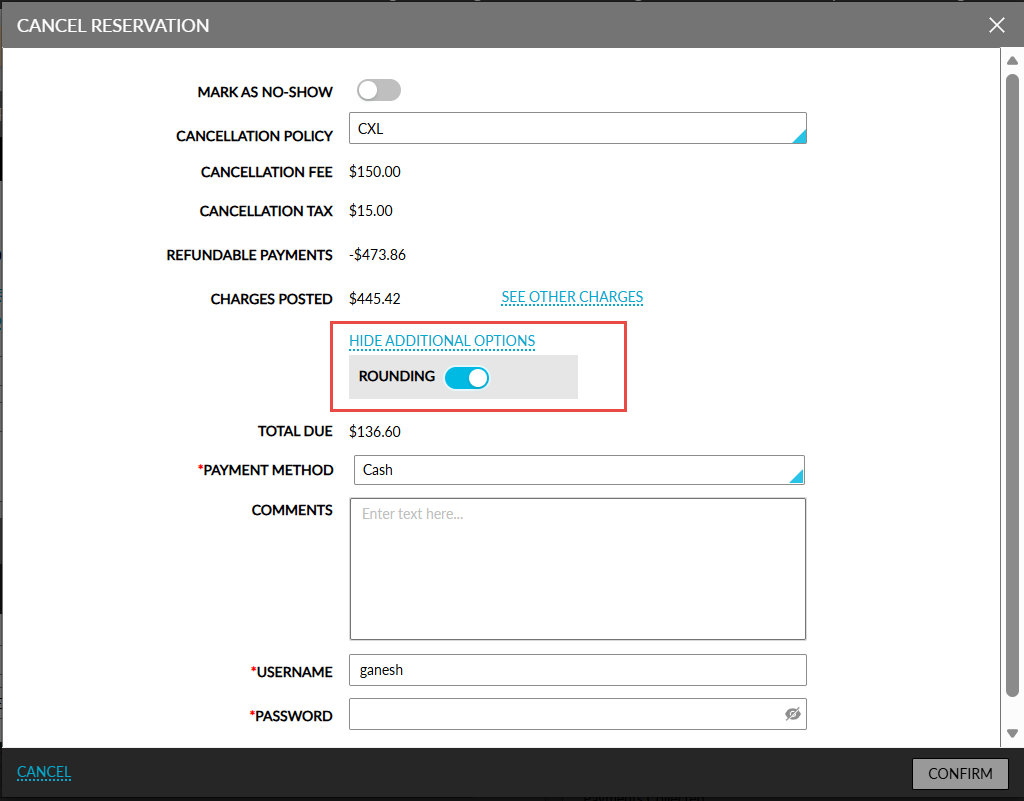
When collecting a cancellation fee, when the total due is less than the smallest denomination, rounding is applied. A new hyperlink, Show additional options, has been added near the Pay All option. When clicked, an accordion expands that displays the Rounding flag. When enabled, the amount in the Total Due field is automatically rounded. When disabled, the exact amount will be displayed.
The rounded amount will not be posted as an offset charge or credit. For cash payment method, users must make a payment manually to close the folio.
Check-Out Reservation Enhancements
During check-out, when the total due is less than the smallest denomination, rounding is applied based on configuration. A new hyperlink, Show additional options, has been added to the Check-Out Reservation pop-up screen. When clicked, an accordion is expanded that displays the Rounding flag.
When enabled, the amount displayed in the Cash Balance field will be rounded automatically. The rounded amount will not be posted as an offset charge or credit. For cash payment method, users must make a payment manually to close the folio.
This functionality is also applicable when guests are checked out early.
Reservation Folio: Make Payments and Split Payments
When users make payments for reservation folios, a new hyperlink, Show additional options, will be displayed in the Make Payment pop-up screen. When clicked, a Rounding flag will be displayed for each folio.
When the flag is enabled, the rounding is applied based on configured rules and denominations. When disabled, the exact amount will be processed without applying rounding.
When users manually enter a payment amount and rounding is enabled, the amount is validated to check if it complies with the configured denomination values (for example, multiples of 0.05). If the entered value does not meet the denomination requirement, the following message will be displayed: Invalid amount due to rounding rule. When rounding is disabled, no such validation is enforced, and exact values are accepted.
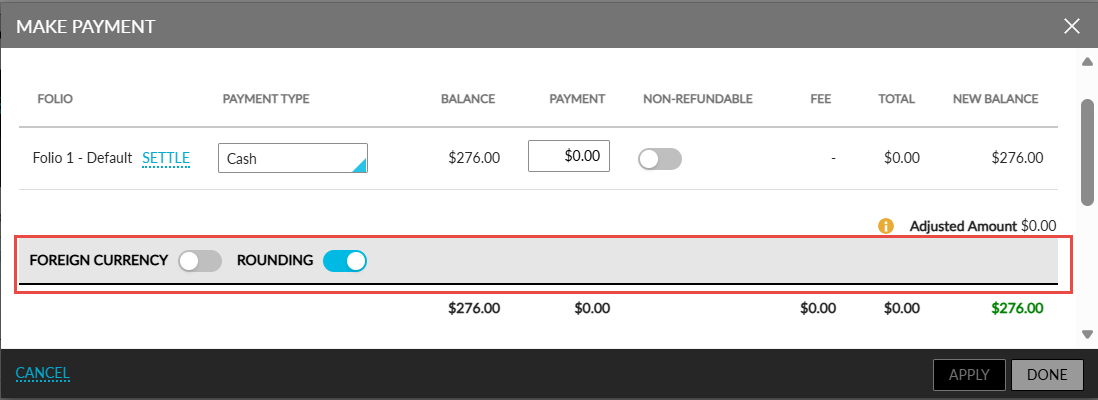
When users select the Pay All or Settle options, the configured rounding rule will be applied automatically, and the rounded amount will be displayed in the Payment field. The difference between the actual and rounded amount is calculated as the adjusted amount and is posted to the folio as either a charge or a credit. This ensures that the folio balance is fully settled and reduced to zero.
The Adjusted Amount is displayed only when rounding is applied through the Pay All or Settle options. This value represents the rounding difference and is posted to the folio to balance the transaction. The Adjusted Amount is not displayed when users manually enter payment amounts or when the rounding flag is turned off.
When users make manual payments, only the entered amount is posted to the folio. In such cases, no adjustment transaction is created, and any remaining balance must be handled operationally.
Split Payment Functionality
In split payment scenarios, users can access the Show additional options hyperlink for each payment, where the Rounding flag is available. The flag behavior follows the same rules defined for standard payments.
When the Pay All option is used in split payments, all folios are automatically selected and the total outstanding balance is populated in the Payment field, enabling full settlement.
When users select the Split by Equally option, the total amount is evenly distributed across the selected folios. When rounding is enabled, each split amount is automatically rounded based on the configured rules. The corresponding adjusted amount for each folio is displayed and posted as a separate transaction to ensure that each folio balance is reduced to zero. When users manually modify the distributed amounts, the amount is validated against the denomination rules, and no adjustment is posted for the manually modified values.
When users selected the Split by Unequally option, they must manually enter the payment amounts for each folio. When rounding is enabled, each entered amount is validated to check if it complies with the denomination rules. No adjustment transactions are created in this scenario, and any remaining balance is handled through subsequent processes such as checkout.
When the Split by Percentage option is selected, rounding rules are not applied, and the behaviour remains consistent with the existing functionality.
House Account Enhancements
For house account payments, users can proceed to make payment using the Continue to Payment option. An Adjustment column has been added to the Make a Payment screen to display the rounding difference applied to the total amount. After the completion of payment, the adjusted amount is posted to the folio as a transaction item to ensure the folio balance is zero.